If you need to delete a Bluetooth device from your Honda Civic, start by accessing the infotainment system’s settings. This is where you can manage all your connected devices.
Next, navigate to the Bluetooth menu to view your list of paired devices. Find the device you want to remove and select it.
You will be asked to confirm the deletion before the system clears all associated data. Understanding this process is essential, as it can vary depending on your model. Skipping steps might cause pairing issues later on.
Key Takeaways
- Access the infotainment system, press Home, then select Settings and navigate to Bluetooth settings.
- Find the list of paired devices and select the device you want to delete.
- Tap Delete or Remove and confirm the deletion to erase the device from the system.
- Deleting a device removes all paired data and prevents automatic reconnection until re-pairing.
- For model-specific steps, consult the owner’s manual as Bluetooth menus vary by Civic year and trim.
How to Access Bluetooth Settings on Your Honda Civic
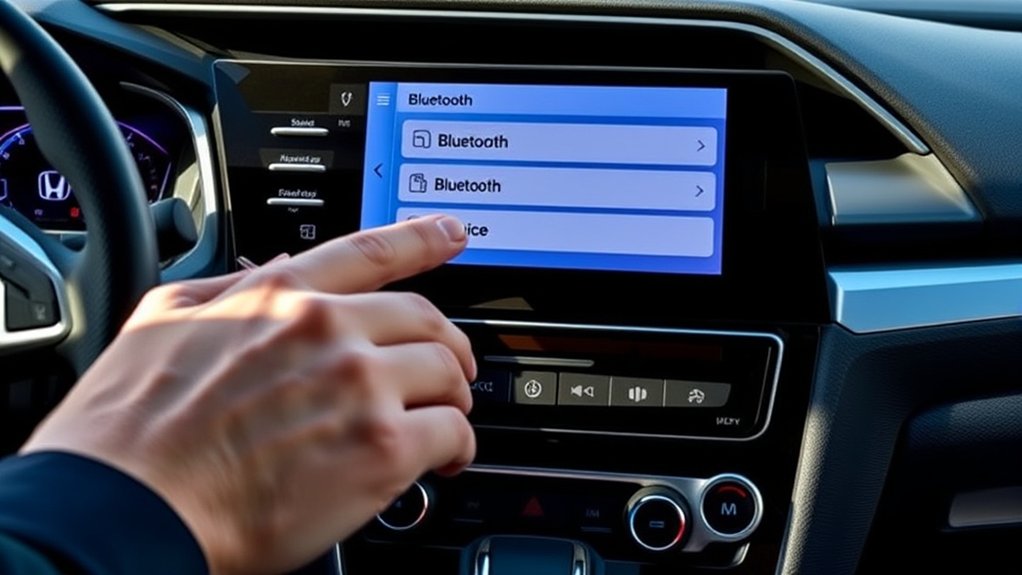
To access Bluetooth settings on your Honda Civic, start by turning on the vehicle’s infotainment system. Once active, press the “Home” button, then select “Settings” from the touchscreen menu.
Begin by powering on your Honda Civic’s infotainment, then tap Home and select Settings on the touchscreen.
Navigate to the “Bluetooth” option to open the Bluetooth settings interface. Here, you can manage Bluetooth pairing by selecting “Add New Device” to connect a new smartphone or audio device.
If you’ve already paired multiple devices, use the device prioritization feature to set your preferred phone as the primary connection. This ensures your Civic automatically connects to the prioritized device when in range.
Follow on-screen prompts for confirming pairing codes to complete the connection process. Accessing these settings allows you to efficiently control and optimize your Bluetooth connections within the vehicle.
How to Delete a Bluetooth Device From Your Honda Civic
Wondering how to remove a Bluetooth device from your Honda Civic? Start by accessing the Bluetooth settings through the infotainment system. Navigate to the list of paired devices, select the device you want to delete, and confirm the removal.
Regular software updates ensure your system supports seamless Bluetooth pairing and device management.
| Step | Action | Notes |
|---|---|---|
| 1. Access Menu | Press “Home” > “Settings” > “Bluetooth” | Confirm system is updated |
| 2. Select Device | Choose paired device to delete | Verify device name and connection |
| 3. Delete Device | Tap “Delete” or “Remove” | Confirm deletion prompt |
Following these steps keeps your Bluetooth connections organized and enhances system performance.
What Happens When You Delete a Bluetooth Device in Your Honda Civic
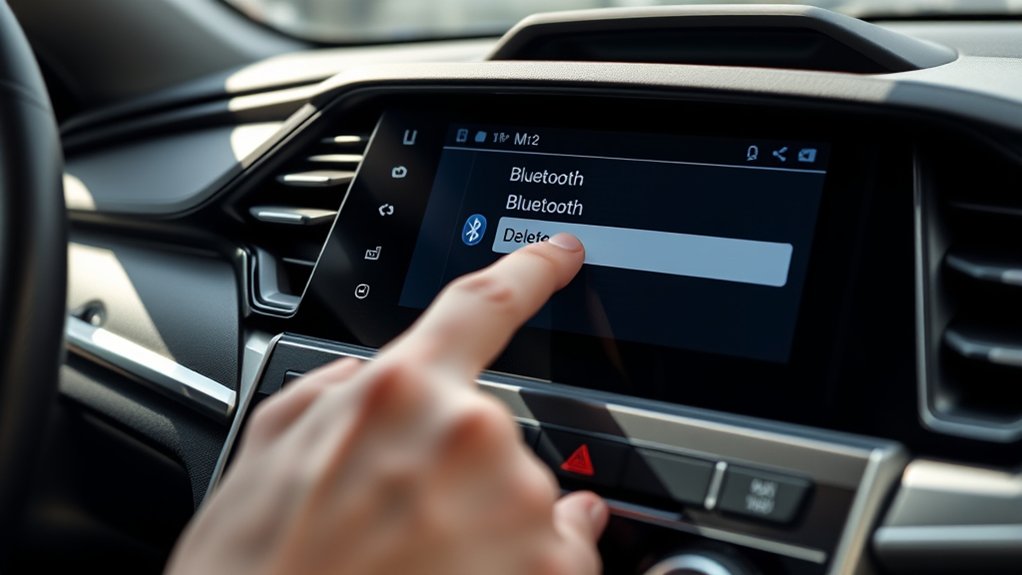
What occurs when you delete a Bluetooth device in your Honda Civic? When you remove a device, the system immediately erases all paired data related to that device, including contacts, call history, and media playback preferences.
This action disconnects the device from the vehicle’s infotainment system, preventing automatic reconnection until you pair it again. Deleting a device helps maintain an organized Bluetooth list, avoiding irrelevant discussion or off topic ideas during pairing or voice commands.
It also frees system memory for new devices. Keep in mind, deleting a Bluetooth device does not affect the device itself, only its stored connection data within the car. This precise process ensures your Honda Civic’s Bluetooth system functions efficiently without clutter or confusion.
How Bluetooth Menus Differ Across Honda Civic Models
You’ll notice that Bluetooth menu layouts vary depending on your Honda Civic model and year. Some models offer additional Bluetooth settings, like device priority or auto-connect options.
Understanding these differences helps you navigate the menus efficiently to delete paired devices.
Menu Layout Variations
How do Bluetooth menus vary across different Honda Civic models? The layout and navigation paths to access Bluetooth settings differ based on the infotainment system generation. Earlier models typically use physical buttons combined with a monochrome display, requiring you to navigate through nested menus labeled “Phone” or “Bluetooth.”
Newer Civics feature touchscreen interfaces with more intuitive menus, often placing Bluetooth management under “Settings” or “Connections.” These variations affect how you manage device security and privacy concerns. For example, newer menus may offer distinct options to control device visibility or auto-connect preferences.
Understanding your model’s specific menu layout ensures you efficiently locate the device removal option, preventing unauthorized access and maintaining privacy. Always consult your owner’s manual for precise menu navigation tailored to your Honda Civic’s Bluetooth system.
Model-Specific Bluetooth Options
Where exactly you find Bluetooth settings in your Honda Civic depends heavily on the model year and trim level. For older models, Bluetooth options typically reside in the “Phone” or “Settings” menu accessed via physical buttons or a basic touchscreen.
Newer Civics with advanced infotainment systems use a more integrated interface, often labeled “Bluetooth” or “Connectivity,” with touchscreen navigation. Higher trims may offer voice command deletion features, while base models require manual selection.
Avoid confusing Bluetooth menus with irrelevant topics like audio equalizer settings or unrelated concepts such as navigation preferences. To delete a device, always ensure you’re in the correct Bluetooth submenu specific to your model, as mistaking it for an unrelated concept can prevent you from properly managing paired devices.
How to Manage Multiple Bluetooth Devices in Your Honda Civic
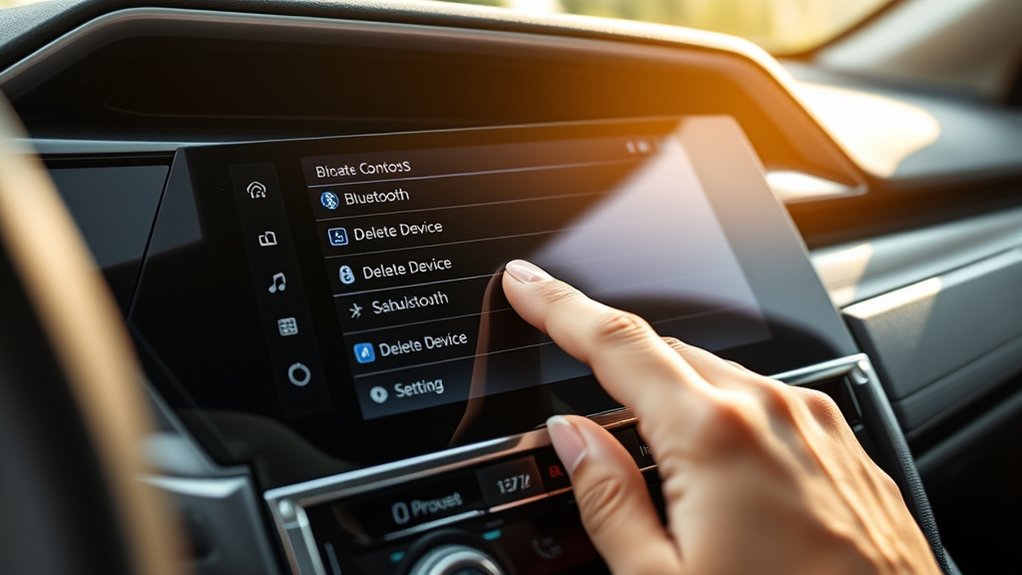
Managing multiple Bluetooth devices in your Honda Civic requires understanding the system’s pairing limits and prioritization settings. Start by accessing the Bluetooth pairing menu through your infotainment system. You can pair several devices, but the maximum varies by model, usually up to five.
After pairing, the system uses device prioritization to determine which device connects automatically. To manage this, navigate to the Bluetooth settings, select “Paired Devices,” and reorder the list to set your preferred device at the top.
When multiple devices are in range, your Civic will prioritize the highest-ranked device. Remember, you can manually connect or disconnect devices if needed. Regularly review your paired devices to remove unused entries, ensuring smoother Bluetooth management and avoiding connection conflicts.
Troubleshooting Bluetooth Issues After Device Deletion in Your Honda Civic
If you experience connection issues after deleting a Bluetooth device, start by resetting your Honda Civic’s Bluetooth system to clear any residual data. Then, carefully re-pair your devices following the proper sequence to ensure a stable connection.
Addressing these common problems step-by-step will restore reliable Bluetooth functionality.
Common Bluetooth Connection Problems
Why does your Honda Civic sometimes struggle to reconnect after you delete a Bluetooth device? Common Bluetooth connection problems stem from residual pairing data or conflicts with your device’s Bluetooth settings. When you delete a device, the system may not fully clear cached profiles, causing connection errors.
To troubleshoot, ensure your phone’s Bluetooth is off before attempting to pair again, avoiding interference from two word ideas one, such as multiple active connections. Also, check for software updates on both the Civic’s infotainment system and your mobile device to resolve compatibility issues.
Two word ideas two, like signal interference or low battery levels, can also disrupt reconnection. Following these steps helps you maintain stable Bluetooth connections without needing a full system reset.
Resetting Honda Civic Bluetooth
When your Honda Civic continues to struggle with Bluetooth connectivity after deleting a device, resetting the Bluetooth system can help clear lingering errors and cached data. To reset, navigate to the infotainment system’s Bluetooth settings menu.
Select “Bluetooth Device List,” then choose the option to “Delete All Devices” or “Reset Bluetooth.” Confirm your choice to initiate the reset. This process erases all paired devices and resets Bluetooth to factory defaults, resolving corrupted profiles or connection glitches.
Avoid getting sidetracked by unrelated topic prompts or irrelevant discussion about other vehicle systems during this step, as they won’t affect Bluetooth troubleshooting. After the reset, your system is cleared and ready for fresh pairing attempts, improving overall connectivity reliability without introducing unnecessary complications.
Re-Pairing Devices Correctly
How do you guarantee a successful Bluetooth connection after deleting a device from your Honda Civic? Addressing conceptual gaps in Bluetooth setup is crucial. Follow these steps to re-pair devices correctly and avoid common pitfalls related to alternative wiring or system settings:
- Activate Bluetooth on your phone and ensure it’s discoverable.
- Access the Honda Civic’s infotainment system, navigate to the Bluetooth menu, and select “Add Device.”
- Confirm the displayed passkey matches on both devices, then accept the pairing request.
- Test the connection by playing audio or making a call to verify functionality.
If issues persist, double-check for alternative wiring or software updates that may interfere with Bluetooth signals. Following this precise procedure minimizes errors and restores seamless connectivity quickly.
How to Reconnect a Previously Deleted Bluetooth Device
Where do you start if you want to reconnect a Bluetooth device you previously deleted from your Honda Civic? Begin by enabling Bluetooth on your device and ensuring it’s discoverable. Then, on your Civic’s infotainment system, navigate to the Bluetooth settings menu.
Select “Add Bluetooth Device” or a similar option to initiate pairing mode. Avoid pursuing irrelevant topics or unrelated concepts like general phone settings, as these won’t affect the vehicle’s Bluetooth setup.
Once your device appears on the car’s screen, select it to start the pairing process. Confirm any prompts on both your device and the car system to finalize the connection. This precise method ensures your previously deleted device reconnects seamlessly without confusion or errors.
Tips for Keeping Your Honda Civic Bluetooth Organized
Why should you keep your Honda Civic’s Bluetooth devices organized? Proper organization minimizes Bluetooth interference and addresses privacy concerns by limiting unauthorized access.
To maintain an efficient system, follow these tips:
Keep your Bluetooth system efficient by regularly managing devices and securing connections.
- Regularly review paired devices and delete those no longer in use.
- Rename devices with clear identifiers to avoid confusion during connection.
- Limit the number of paired devices to reduce signal conflicts and improve connection speed.
- Secure your Bluetooth settings with a strong PIN or password to prevent unauthorized pairing.
When Should You Reset Your Honda Civic’s Bluetooth System
When should you consider resetting your Honda Civic’s Bluetooth system? You should reset it if you encounter persistent connection failures, audio dropouts, or unrecognized devices despite following proper Bluetooth etiquette.
Resetting clears the stored device list, resolving conflicts caused by outdated pairings or device compatibility issues. It’s also advisable to reset after a software update or when adding multiple new devices to maintain optimal performance.
Before resetting, ensure you’ve deleted unnecessary devices and confirmed that your phone’s Bluetooth is functioning correctly. This action restores the system’s default settings, providing a clean slate for pairing.
Regularly resetting can prevent pairing conflicts, ensuring seamless connectivity and improving overall user experience with your Honda Civic’s Bluetooth system.
Frequently Asked Questions
Can I Delete Bluetooth Devices Using Voice Commands in My Honda Civic?
You can’t delete paired devices using voice commands in your Honda Civic. To delete Bluetooth devices, you must manually access the Bluetooth settings through the infotainment system and select the device you want to delete.
Does Deleting a Bluetooth Device Affect My Car’s Warranty?
Deleting a Bluetooth device won’t affect your car’s warranty. It only modifies privacy settings and stored connections.
Just ensure your software updates remain intact, as those are essential for warranty compliance and peak system performance.
How Do Bluetooth Deletions Impact My Phone’s Connection History?
You might think deleting device history erases all connection data, but it only removes pairing records on your phone. It won’t delete other Bluetooth optimization files, so your phone’s overall Bluetooth functionality stays intact and efficient.
Are There Any Safety Concerns When Deleting Bluetooth Devices While Driving?
Yes, safety concerns arise because deleting Bluetooth devices can cause driving distractions. You shouldn’t perform this task while driving; instead, park safely first to avoid diverting your attention from the road and compromising control of your vehicle.
Can Deleting Bluetooth Devices Improve My Car’s Battery Life?
Cutting loose unused Bluetooth devices won’t be a silver bullet for battery life; it’s a common battery myth. Still, managing connection retention smartly can reduce minimal power draw, so regularly clearing devices can slightly optimize your car’s energy use.
Conclusion
Now that you know how to delete a Bluetooth device from your Honda Civic, you can keep your connection list clean and efficient. Coincidentally, removing old devices often solves lingering pairing issues without a full system reset. Just follow the steps precisely, and your Bluetooth will stay organized and responsive.
Remember, if you ever need to reconnect a device, it’s as simple as pairing again—keeping your hands on the wheel and your focus on the road. Deleting a Bluetooth device from your Honda Civic helps maintain a seamless and safe driving experience.