You might assume connecting Bluetooth to a Honda Civic is a straightforward process, but it requires specific steps to ensure a stable and secure link. Preparing the vehicle’s infotainment system and enabling pairing mode are essential before your phone can recognize the Civic.
Understanding these initial requirements helps avoid common errors and sets the stage for a seamless connection experience you’ll want to explore further. Following the right procedure ensures your Bluetooth connection remains reliable while driving.
Key Takeaways
- Prepare your Honda Civic’s audio system and ensure Bluetooth is enabled in the infotainment settings before starting the pairing process.
- Enable Bluetooth on your smartphone, scan for available devices, and select your Honda Civic from the list.
- Confirm the passkey displayed on both the car screen and phone to establish a secure Bluetooth connection.
- After pairing, your phone will automatically connect when Bluetooth is on, enabling hands-free calling and audio streaming.
- Troubleshoot connection issues by updating software, restarting devices, or resetting Bluetooth settings if pairing fails.
Prepare Your Honda Civic for Bluetooth Pairing
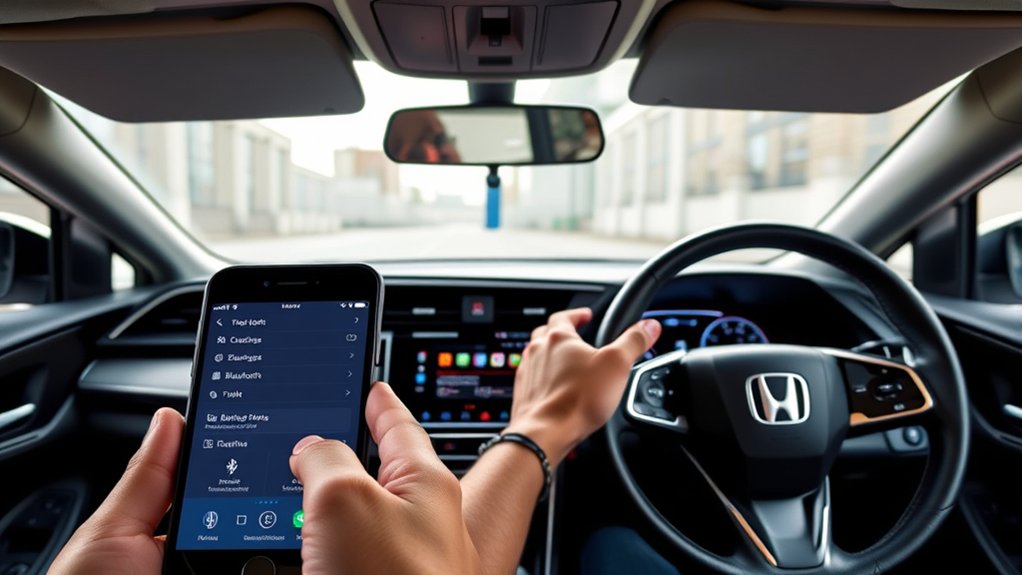
How do you get your Honda Civic ready for Bluetooth pairing? First, ensure the vehicle’s electrical system is stable by prepping wiring connections related to the infotainment unit. Check that all connectors are secure and free from corrosion or damage, which can interfere with signal transmission.
Next, power on your Civic’s audio system and navigate to the Bluetooth settings menu to confirm the system is in pairing mode standby. Following proper pairing etiquette, disable Bluetooth on other nearby devices to prevent connectivity conflicts.
Keep your smartphone or Bluetooth device close to the vehicle’s console to maintain a strong signal during the pairing process. By addressing these technical steps precisely, you optimize your Honda Civic’s readiness for a smooth and efficient Bluetooth connection.
Connect Bluetooth on Your Honda Civic
Where do you start when connecting Bluetooth on your Honda Civic? Begin by accessing the infotainment system’s settings menu. Select “Bluetooth” and enable Bluetooth pairing mode.
Start Bluetooth pairing on your Honda Civic by accessing the infotainment settings and enabling Bluetooth mode.
On your smartphone, turn on Bluetooth and scan for available devices. Choose your Honda Civic from the list, typically named “Honda Civic” or similar. Confirm the passkey displayed on both your phone and the car’s screen to establish a secure connection.
Once paired, your phone will automatically connect to the car’s system when Bluetooth is active. This setup enables hands free calling, allowing you to make and receive calls safely while driving.
Verify your phone’s Bluetooth is on for seamless reconnection. Follow these steps precisely to complete Bluetooth pairing efficiently and enjoy hands free calling functionality in your Honda Civic.
Troubleshoot Common Bluetooth Connection Issues
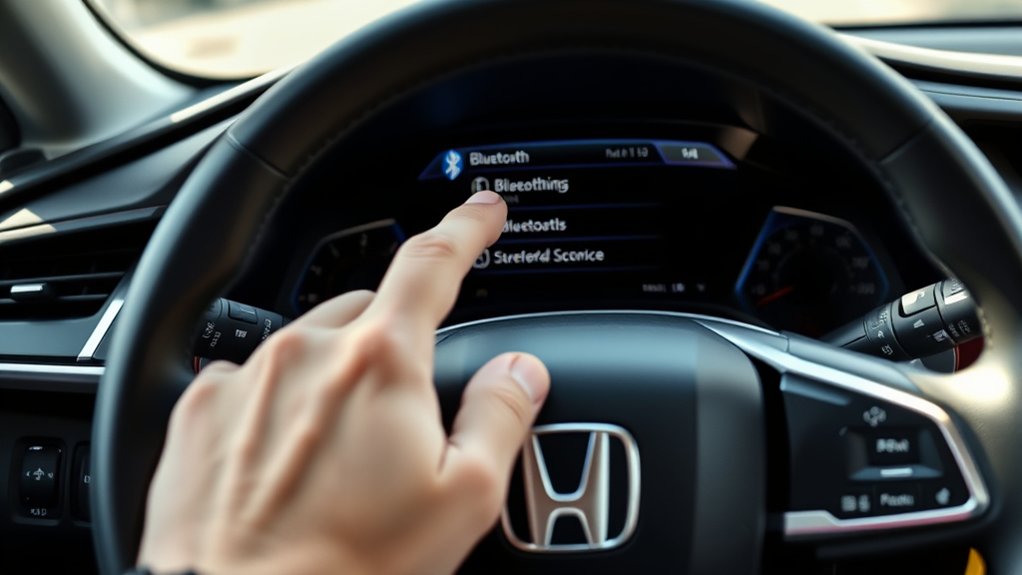
Why won’t your Honda Civic’s Bluetooth connect properly? Common issues include Bluetooth interference from nearby devices and outdated firmware. Start by ensuring your phone and car software are updated.
If problems persist, reset the Bluetooth connection. Use this troubleshooting guide to quickly identify and fix issues:
| Issue | Solution |
|---|---|
| No connection | Restart phone and car system |
| Pairing fails | Delete old pairings, retry |
| Audio drops | Check for Bluetooth interference |
| Device not found | Enable Bluetooth visibility |
| Firmware outdated | Update car’s infotainment system |
Manage Paired Bluetooth Devices on Your Honda Civic
When was the last time you reviewed the devices paired to your Honda Civic’s Bluetooth system? Managing paired devices ensures seamless connectivity and avoids confusion when multiple devices attempt to connect simultaneously.
Access the Bluetooth settings through your infotainment menu, then navigate to the “Paired Devices” list. From here, you can select and delete devices no longer in use or unrelated to your daily routine.
Avoid confusing unrelated topic features or tangential concepts like app integrations when managing devices, as they don’t affect Bluetooth pairing directly. Keep this list current to prevent connection conflicts and maintain efficient device recognition.
Regularly clearing obsolete devices enhances system performance and minimizes pairing errors, ensuring your Honda Civic connects quickly to the correct device every time.
Maximize Your Honda Civic Bluetooth Experience
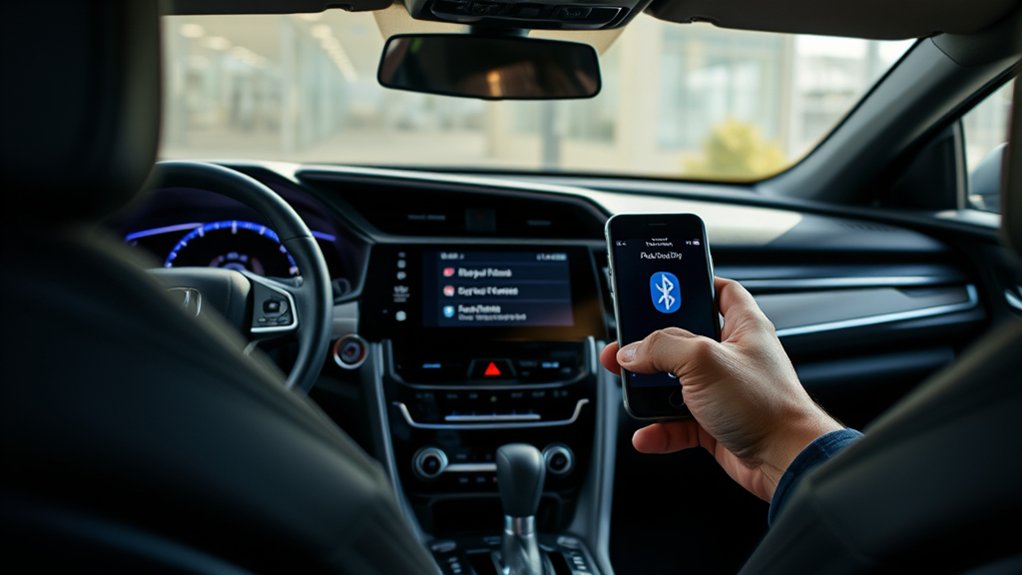
How can you enhance your Honda Civic’s Bluetooth functionality beyond basic pairing? To maximize your Bluetooth experience beyond radio streaming, focus on optimizing connectivity and device integration.
- Utilize Wireless Headphones: Connect wireless headphones directly via Bluetooth for private listening without impacting car speakers.
- Enable Multipoint Pairing: Pair multiple devices simultaneously to switch smoothly between calls and media sources.
- Update Firmware Regularly: Keep your Civic’s infotainment system firmware current to improve Bluetooth stability and add new features.
- Customize Audio Settings: Adjust EQ and balance settings through the system to enhance sound quality during Bluetooth playback.
Implementing these strategies ensures you leverage your Honda Civic’s Bluetooth capabilities fully, delivering seamless wireless audio and communication beyond radio functions.
Frequently Asked Questions
Can I Connect Multiple Devices to My Honda Civic Bluetooth Simultaneously?
You can’t connect multiple devices simultaneously to your Honda Civic’s Bluetooth, as it causes unreliable pairing.
The system supports device prioritization, allowing one active connection at a time to maintain stable and precise communication.
Is Bluetooth Connectivity Available on All Honda Civic Model Years?
Bluetooth connectivity isn’t available on all Honda Civic model years due to Bluetooth limitations in older models. You’ll need firmware updates for compatibility, especially in mid-2010s and later models, to guarantee seamless connection and functionality.
Does Using Bluetooth Affect My Honda Civic’s Fuel Efficiency?
Using Bluetooth won’t affect your Honda Civic’s fuel efficiency. However, you might experience Bluetooth latency or device pairing difficulties, which impact connectivity quality but have no measurable effect on fuel consumption or engine performance.
Can I Make Hands-Free Emergency Calls via Honda Civic Bluetooth?
Yes, you can make hands-free calls via Honda Civic Bluetooth, including emergency calls. However, be aware of privacy concerns since call data may be accessible through the system.
Always verify settings to protect your information.
How Secure Is the Bluetooth Connection in My Honda Civic?
Your Honda Civic’s Bluetooth connection is secure, employing encryption and authentication during the pairing process. These security features protect your data, but you should still avoid pairing with unknown devices to maintain ideal safety.
Conclusion
Connecting Bluetooth to your Honda Civic is like building a bridge between your devices and your drive—seamless, secure, and smart. By preparing your vehicle properly and following the steps to pair and manage devices, you guarantee this bridge stays strong and reliable.
When issues arise, troubleshoot quickly to maintain connectivity. Mastering these connections lets you navigate hands-free, turning your drive into a streamlined, connected journey every time you hit the road.
With a solid understanding of how to connect Bluetooth to a Honda Civic, you ensure your driving experience remains safe, convenient, and fully integrated.