If you want to connect your phone to your Honda CR-V without USB, you’ll need to use wireless technologies like Bluetooth or Wi-Fi. Ensuring both your phone and the vehicle’s system support these protocols is essential for a smooth connection.
Once connected, you can easily access calls, messages, and media from your phone through the CR-V’s infotainment system. The setup process involves specific steps for pairing and granting permissions.
These steps can vary depending on your phone’s platform and the CR-V’s infotainment features, so following the correct procedure is important for a seamless experience.
Key Takeaways
- Enable Bluetooth on your phone and access the CR-V infotainment Settings menu.
- Select Phone or Bluetooth, then choose Add Bluetooth Device to make the CR-V discoverable.
- On your phone, select “CR-V” from available Bluetooth devices and confirm the pairing code.
- Ensure your phone’s OS and CR-V software are updated for smooth wireless connection.
- For wireless Apple CarPlay or Android Auto, enable both Bluetooth and Wi-Fi on your phone before pairing.
Understanding Honda CR-V Wireless Phone Compatibility
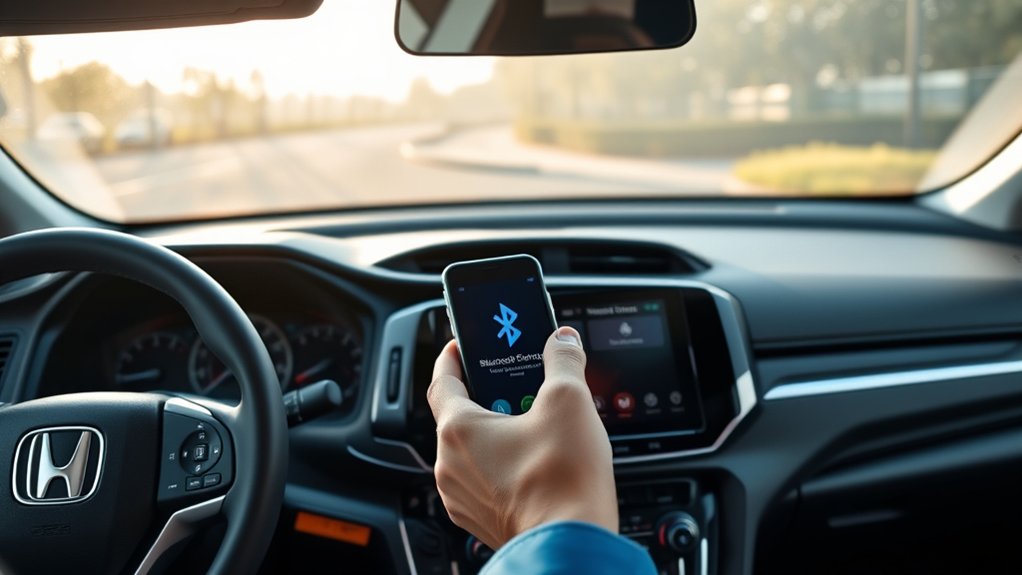
How do you determine if your phone is compatible with your Honda CR-V’s wireless system? Start by checking your phone’s Bluetooth version; the CR-V supports Bluetooth 4.0 and above for seamless connectivity.
Verify that your phone’s operating system is updated to the latest version, as outdated software can hinder wireless compatibility. Honda’s wireless system is designed to support eco friendly features, like hands-free calling and audio streaming, which enhance urban commuting efficiency.
Consult your Honda CR-V owner’s manual or the official Honda website for a list of compatible phone models. Ensuring compatibility not only optimizes connectivity but also supports your vehicle’s eco friendly technology, helping you maintain a smooth, efficient urban commute without relying on USB cables.
How to Connect Your Phone via Bluetooth on Honda CR-V
Once you’ve confirmed your phone’s compatibility with your Honda CR-V’s wireless system, you can proceed to pair the devices via Bluetooth. Start by enabling Bluetooth on your phone and accessing the “Settings” menu on the CR-V’s infotainment screen. Select “Phone” or “Bluetooth,” then choose “Add Bluetooth Device” to initiate discovery mode.
On your phone, select your CR-V from the available devices list. You’ll be prompted to confirm a pairing code, ensuring secure connection and debunking common tech myths about complicated setups. Once paired, your phone automatically connects when in range, maintaining seamless integration without compromising car aesthetics.
This method keeps your dashboard clean and cable-free while providing reliable audio and call functionality.
How to Set Up Wireless Apple CarPlay in Honda CR-V
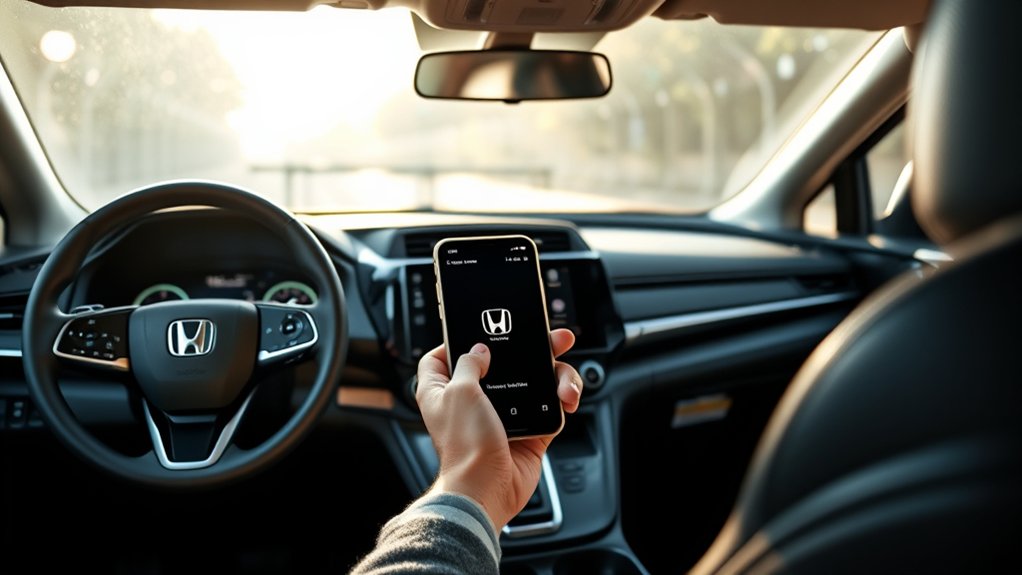
To set up wireless Apple CarPlay in your Honda CR-V, ensure your iPhone and vehicle meet compatibility requirements. Follow the step-by-step pairing process to establish a seamless connection.
If you encounter issues, apply troubleshooting techniques to resolve connectivity problems quickly.
Compatibility Requirements Overview
What devices and software versions do you need to get wireless Apple CarPlay working in your Honda CR-V? First, guarantee you have an iPhone 5 or newer running iOS 9 or later. Your Honda CR-V must support wireless CarPlay, typically models from 2017 onward with the appropriate infotainment system.
Confirm your iPhone’s Bluetooth and Wi-Fi are enabled, as wireless CarPlay uses both for connectivity. Keep your phone’s software updated to avoid compatibility issues. While exploring topic ideas, don’t confuse wired CarPlay setup or unrelated angles like Android Auto compatibility. They require different steps and hardware.
Verifying these compatibility requirements before proceeding ensures a smooth wireless setup experience, avoiding connectivity failures or system errors in your Honda CR-V’s infotainment system.
Step-by-Step Pairing Process
How do you initiate the wireless Apple CarPlay connection in your Honda CR-V? Follow these precise steps to pair your iPhone without any unrelated topic or off topic discussion distracting you:
- Enable Bluetooth and Wi-Fi on your iPhone.
- On the CR-V’s infotainment screen, select “Settings,” then “Phone,” and choose “Add Bluetooth Device.”
- On your iPhone, under Bluetooth settings, select your Honda CR-V from the available devices list.
- Confirm the pairing code on both the car’s display and your iPhone to complete the connection.
Once paired, Apple CarPlay will launch wirelessly, allowing seamless access to apps. Avoid introducing any unrelated topic during this process to ensure a smooth setup. This step-by-step method guarantees a precise connection without relying on USB.
Troubleshooting Connection Issues
If your wireless Apple CarPlay connection in the Honda CR-V fails to establish or frequently drops, you’ll need to systematically troubleshoot the issue. First, ensure both your iPhone’s Bluetooth and Wi-Fi are enabled and within range. Restart your phone and the vehicle’s infotainment system to clear temporary glitches.
Delete the existing CarPlay pairing from both devices and set it up anew. Avoid engaging in irrelevant topic or random discussion on the infotainment screen during setup, as this can interrupt the connection process.
Check for software updates on your iPhone and your CR-V’s system; outdated firmware often causes instability. Finally, verify no other Bluetooth devices are interfering.
If problems persist, consult your Honda dealer or Apple support for advanced diagnostics.
How to Connect Android Auto Wirelessly on Honda CR-V
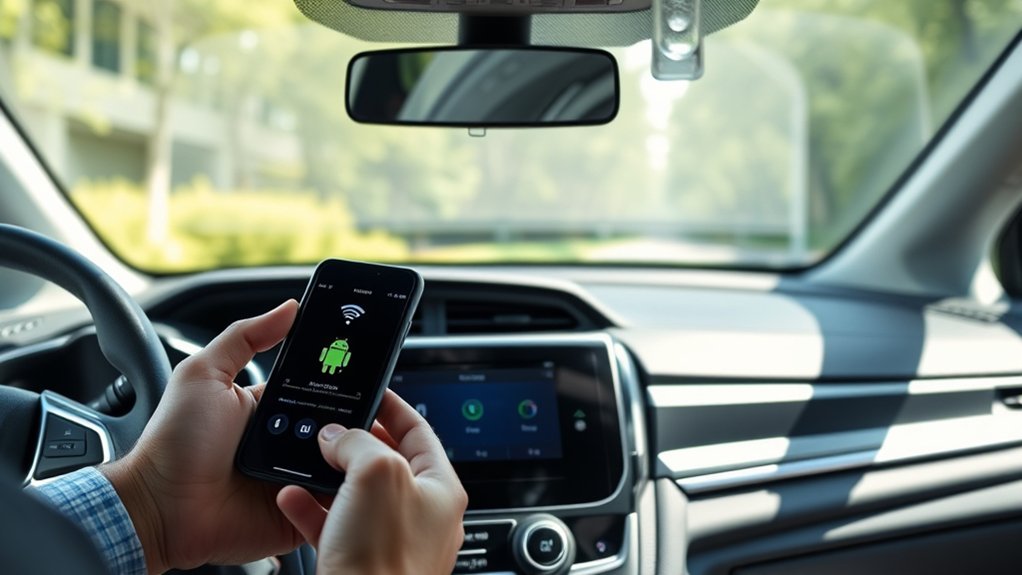
Wondering how to set up Android Auto wirelessly in your Honda CR-V? Follow these precise steps to ensure a seamless connection without compromising battery safety or missing crucial firmware updates:
- Enable Bluetooth and Wi-Fi on your Android phone and ensure Android Auto is installed.
- On your CR-V’s infotainment system, navigate to the wireless Android Auto setup menu.
- Select “Add New Device” and allow your phone to pair via Bluetooth; confirm the pairing code matches.
- Accept the prompt on your phone to enable wireless Android Auto and confirm any firmware updates on your infotainment system to maintain compatibility and battery safety.
This method avoids USB cables while providing efficient, real-time communication between your phone and vehicle system.
How to Use HondaLink to Connect Your Phone Wirelessly
To use HondaLink for wireless phone connection, start by downloading the HondaLink app on your smartphone. Next, create an account and follow the prompts to set up your vehicle profile.
Finally, pair your phone with your CR-V’s infotainment system via Bluetooth to establish the wireless link.
Setting Up HondaLink
How exactly do you set up HondaLink to connect your phone wirelessly? First, ensure your vehicle’s infotainment system supports HondaLink. Then, follow these steps precisely:
- Download the HondaLink app from your phone’s app store.
- Enable Bluetooth and Wi-Fi on your phone to minimize signal interference during setup.
- Open the app and create or log in to your HondaLink account.
- Follow the on-screen prompts to connect your phone to the vehicle’s system.
Pay attention to battery aesthetics; the app displays battery status for connected devices, helping you monitor power levels efficiently. Avoid areas with heavy signal interference, like dense urban settings, to ensure a smooth connection. This process prepares your system for seamless wireless interaction without needing a USB connection.
Pairing Your Smartphone
A successful pairing of your smartphone with HondaLink requires precise steps to establish a stable wireless connection. First, enable Bluetooth on your phone and select HondaLink from the available devices. Confirm the pairing code displayed on both screens.
Once paired, you can access features like car financing options and tire rotation reminders directly through the app.
| Step | Action | Result |
|---|---|---|
| 1 | Enable Bluetooth | Phone discovers HondaLink |
| 2 | Select HondaLink | Initiates pairing |
| 3 | Confirm pairing code | Secure connection |
| 4 | Access HondaLink app features | Manage car financing, tire rotation |
| 5 | Maintain Bluetooth active | Ensure ongoing connectivity |
How to Manage Multiple Bluetooth Phones on Honda CR-V
Wondering how to juggle multiple Bluetooth connections in your Honda CR-V? The system lets you manage up to five paired phones, but only one active connection at a time. Here’s how you can efficiently handle them:
- Access the Bluetooth settings via the infotainment screen.
- Select “Paired Devices” to view all connected phones.
- Choose the device you want to make active by selecting “Connect.”
- To switch phones during a drive, pause any media or calls, then manually connect the desired device.
This setup functions smoothly, much like smoke alarms monitoring different zones. Each device stays ready but only one “alerts” at a time. Think of it like tending kitchen herbs: you manage each with care, ensuring your driving experience remains uninterrupted and organized.
How to Troubleshoot Wireless Connection Issues
Managing multiple Bluetooth connections on your Honda CR-V keeps your devices ready but can sometimes lead to wireless connectivity hiccups. To troubleshoot, first, ensure your phone’s Bluetooth is enabled and not in battery optimization mode, which can restrict background processes essential for connection.
Managing multiple Bluetooth devices in your Honda CR-V may cause connection issues—start by enabling Bluetooth and disabling battery optimization.
Next, check your CR-V’s infotainment system for paired devices and remove any that are unused to prevent conflicts. Restart both your phone and the vehicle’s system to reset wireless modules.
Verify that your phone’s software and the car’s firmware are up to date, as outdated versions can cause compatibility issues. Finally, confirm that data privacy settings on your phone allow the CR-V to access necessary permissions like contacts and media to establish a stable connection.
Following these steps will resolve most wireless connection problems effectively.
How to Improve Wireless Connection Stability
Although wireless connections offer convenience, they can suffer from intermittent drops or slow data transfer if not properly optimized. To improve your Honda CR-V’s wireless connection stability, follow these steps:
- Minimize Interference: Keep your phone and vehicle’s infotainment system away from other wireless devices that may cause signal disruption.
- Optimize Battery Settings: Disable aggressive battery optimization on your phone to prevent it from limiting Bluetooth or Wi-Fi activity during use.
- Adjust Screen Brightness: Lower your phone’s screen brightness to reduce power consumption, which can help maintain consistent wireless performance.
- Regularly Update Firmware: Ensure both your phone’s OS and the CR-V’s infotainment software are up to date to benefit from the latest connectivity enhancements.
Implementing these measures will ensure a stable and reliable wireless connection without needing a USB cable.
How to Disconnect or Forget a Bluetooth Device on Honda CR-V
How do you disconnect or forget a Bluetooth device on your Honda CR-V? Start by accessing the infotainment system’s settings menu. Navigate to the Bluetooth settings, then select “Paired Devices” or “Connected Devices.”
Locate the device you want to disconnect or forget, and choose the option to “Remove” or “Forget.” Confirm your selection to delete the device from the system.
This action enhances Bluetooth privacy by preventing unauthorized access and ensures data encryption isn’t compromised by previously paired devices. If you wish to reconnect the device later, you’ll need to pair it again from scratch.
Regularly managing paired devices helps maintain secure connections and protects your personal data from potential breaches. Following these steps keeps your Honda CR-V’s Bluetooth system organized and secure.
Frequently Asked Questions
Can I Connect My Phone to Honda CR-V Without Bluetooth or USB?
You can’t connect your phone to a Honda CR-V without Bluetooth or USB officially, but you can attempt unofficial pairing using aftermarket adapters. These devices enable audio input, though setup requires technical knowledge and may void warranties.
What Are the Safety Tips for Using Wireless Phone Connections in Honda CR-V?
You should prioritize wireless safety by ensuring secure connections and avoiding distractions. Maintain connection etiquette by muting calls when not driving and confirming voice commands work correctly to keep your Honda CR-V experience safe and efficient.
Does Honda CR-V Support Wireless Charging for Smartphones?
Like a seamless circuit, your Honda CR-V supports wireless charging for compatible smartphones, enhancing phone integration. Just place your device on the designated pad, and it’ll charge effortlessly without cables, optimizing your driving experience.
Can I Use Voice Commands With Wireless Phone Connections in Honda CR-V?
Yes, you can use voice commands with wireless phone connections in your Honda CR-V, but be aware of voice command limitations and wireless data security risks. Always update software to maintain optimal performance and protect your data.
Are There Any Apps Recommended for Enhancing Wireless Phone Connectivity in Honda CR-V?
You should use apps compatibility tools like Android Auto or Apple CarPlay to enhance wireless phone connectivity in your Honda CR-V.
Note wireless charging limits; some apps may drain battery faster when connected wirelessly.
Conclusion
Connecting your phone to the Honda CR-V without USB is like weaving invisible threads between devices—seamless and efficient. By mastering Bluetooth, wireless Apple CarPlay, or Android Auto, you unlock a hands-free symphony of connectivity.
Keep your system updated, manage multiple devices wisely, and troubleshoot promptly to maintain a steady signal. This technical dance ensures your drives stay connected, safe, and distraction-free.
With these tips, you can easily connect your phone to the Honda CR-V without USB, turning your vehicle into a mobile command center at your fingertips.